Run both products against the same devices, actions and expected results.
- Agree mandatory requirements with IT, Security and Privacy before testing.
- Record the evidence for each result and keep untested rows visible.
- Give Procurement a reproducible scorecard with a named owner for every gap.
In this article
Count the endpoints you can actually observe#
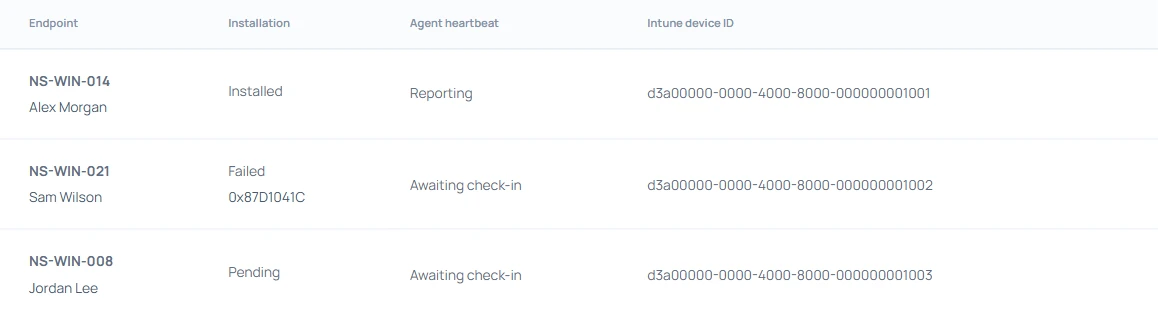
Suppose IT assigns three Windows laptops to a pilot group. In the fictional installation report above, one installation succeeded and the agent checked in, one failed, and one is pending. The reported share is one of three. Counting only successful installations would turn that into one of one and hide the deployment problem.
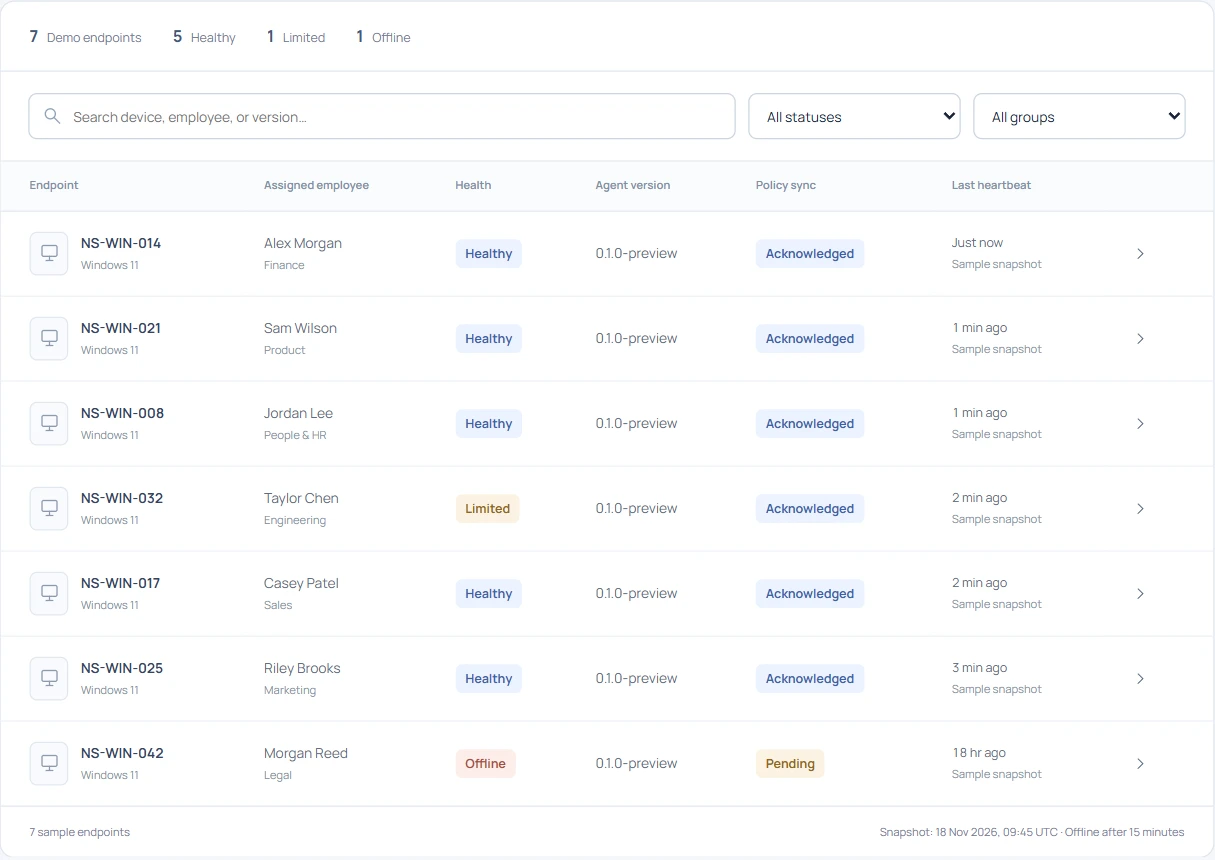
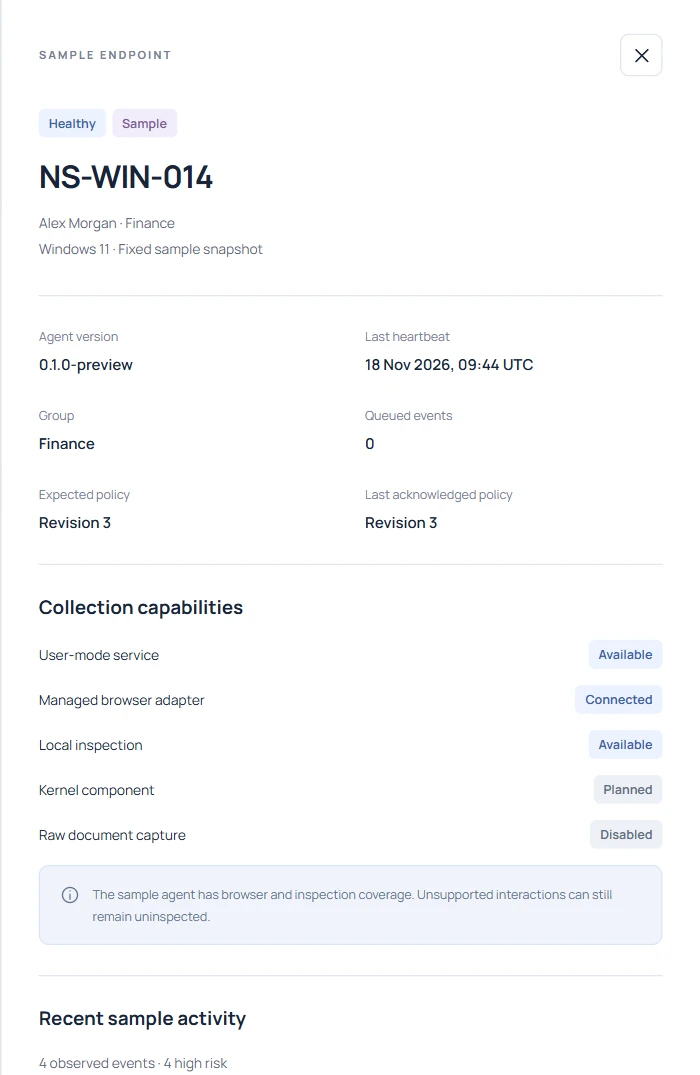
Before installing either product, agree the device group, exclusions, browser version and test window with IT. Record the same configuration for each run. Ask the privacy reviewer which fields may leave the test device and who may open a receipt. In the scorecard, record the expected device count and the number that produced your harmless browser action.
Try a harmless paste with a known answer#
On a supported test page paste an invented address such as pilot@example.invalid. Leave the prompt unsent and record the time in UTC. For each vendor, ask the reviewer to find the destination, device and detected category without seeing the test script. Repeat with ordinary text and record any unexpected match.
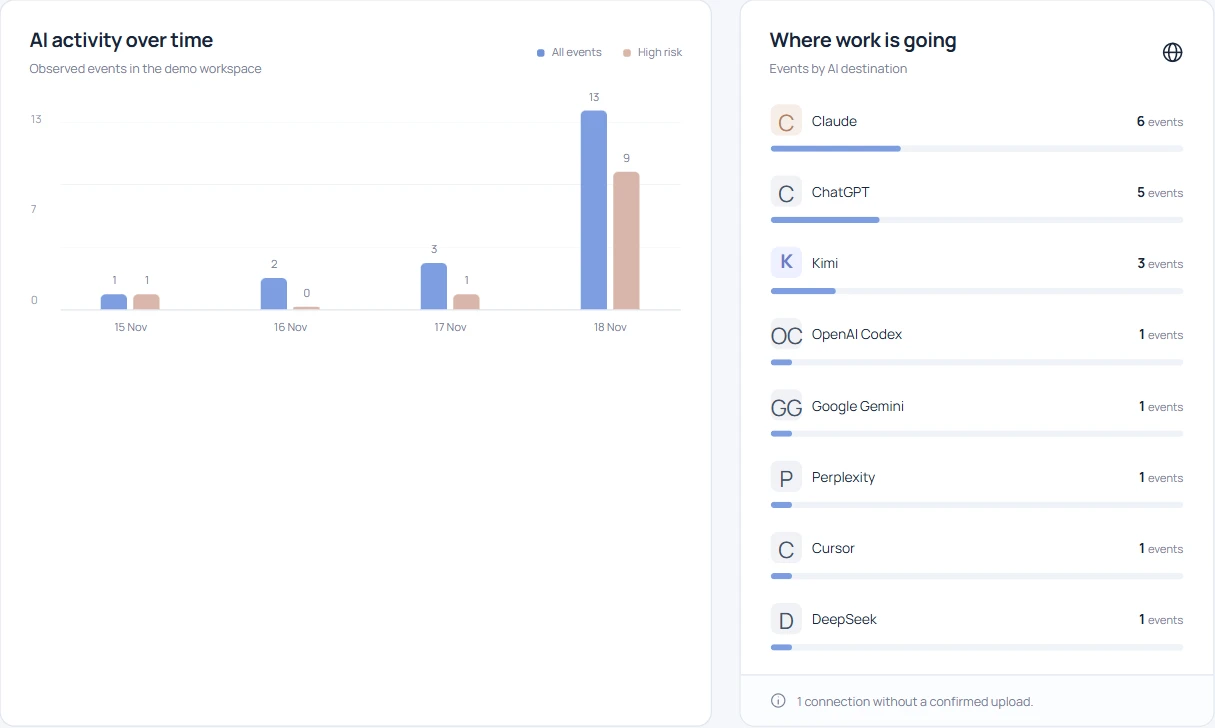
Check the fields visible to a reviewer and the contents of an ordinary export against the privacy agreement. The Gemini example shows categories and counts. Ask what a differently privileged reviewer could retrieve and under which policy.
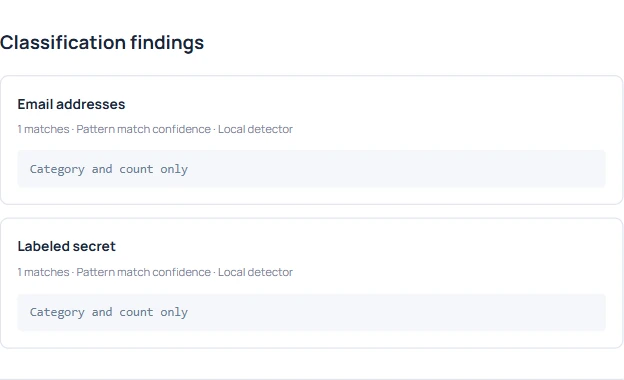
Select a document, then cancel#
Use a harmless document with a unique basename. Choose it in an AI page, then remove it before sending. On a second run, complete an authorized test submission with a different basename. Keep your independent record of what happened beside each receipt. A product that labels both files uploaded has failed the cancellation test, even if it found both filenames.
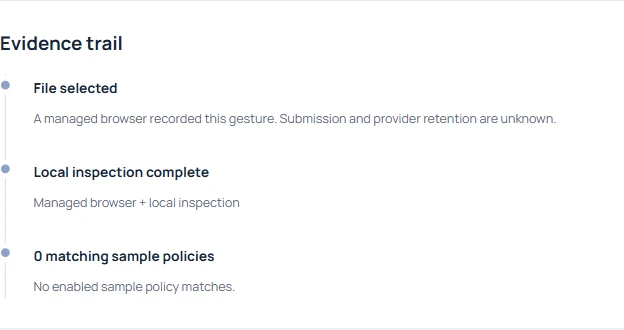
Open an AI editor and leave it idle#
Launch a supported editor on the test laptop and leave its window idle. In Northstar the Cursor observation identifies the device and process. Ask each vendor what would justify reporting a prompt, a file or an active user. Give credit for correctly labeling a process observation. If your purchase requires prompt visibility inside that editor, score that requirement separately.
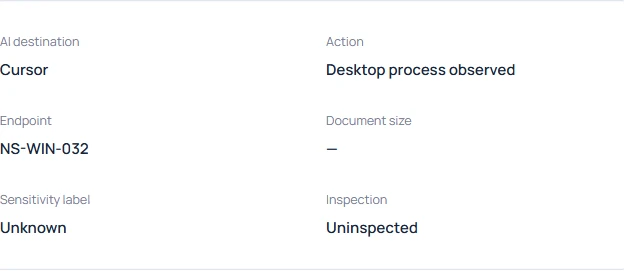
Include a file the detector cannot read#
Prepare an encrypted test PDF and a readable counterpart with a known synthetic finding. Record which file each detector inspected. If one file was unreadable and the other matched, report one match among one inspected file and one file with unknown contents. Combining both files into a single detection percentage conceals the reason for the gap.
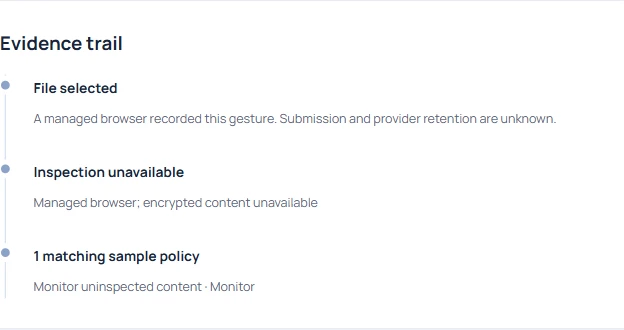
Have a second reviewer reproduce the result#
Give the reviewer only the test hostname, date and filenames. Ask them to recover the two file observations and explain which one had supporting transfer evidence. Record their elapsed time, the fields they needed and any permissions they had to request.
In the CSV, mark each result Pass, Fail or Untested and add a receipt reference. Set weights and mandatory rows before either run. Give a pass its agreed weight and a fail zero. Leave untested rows visible and report their weight separately. A missed mandatory privacy or evidence requirement should hold the purchase decision until an owner resolves it. Keep the scorecard with the tested versions and pilot date so Procurement can reproduce the comparison.