A filename match starts the review. The link from each selection to its requests determines which counts you can report.
- Keep a distinct record for each selection.
- Read every related request and its response status.
- Check application evidence before counting provider attachments.
In this article
Start with one known spreadsheet#
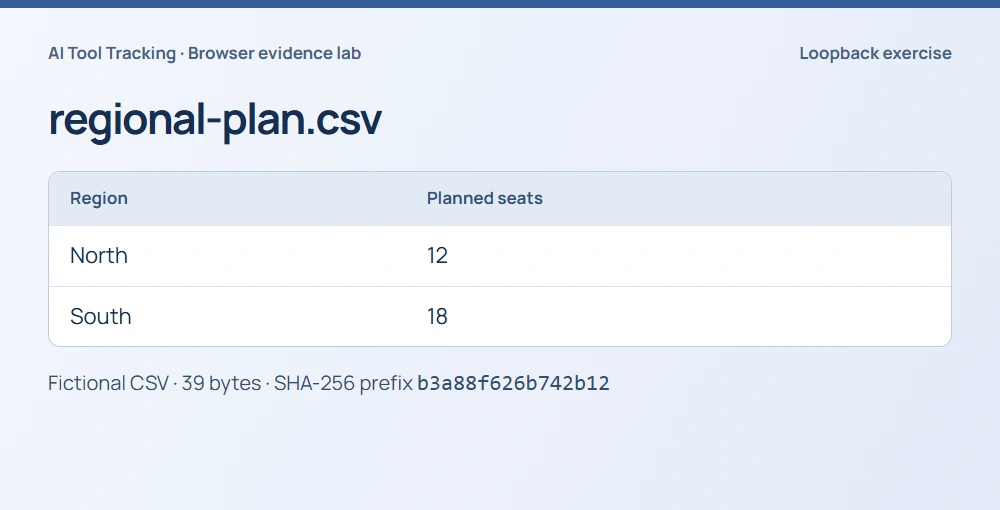
Suppose Finance asks how many times someone uploaded regional-plan.csv. A search finds two selections under the same filename. What count belongs in the ticket? We ran a small browser exercise with invented seat counts to work through that question. The browser sent requests to a server on the test machine. We could see both the browser actions and exactly what that server received.
For a real review, start by writing down the workspace, device, destination, receipt IDs and time range. Compare file size and the content digest when available. Two versions of a budget can share a filename. Identical digests establish that the inspected bytes match. The sequence of actions still needs its own evidence.
Follow the first selection to its next action#
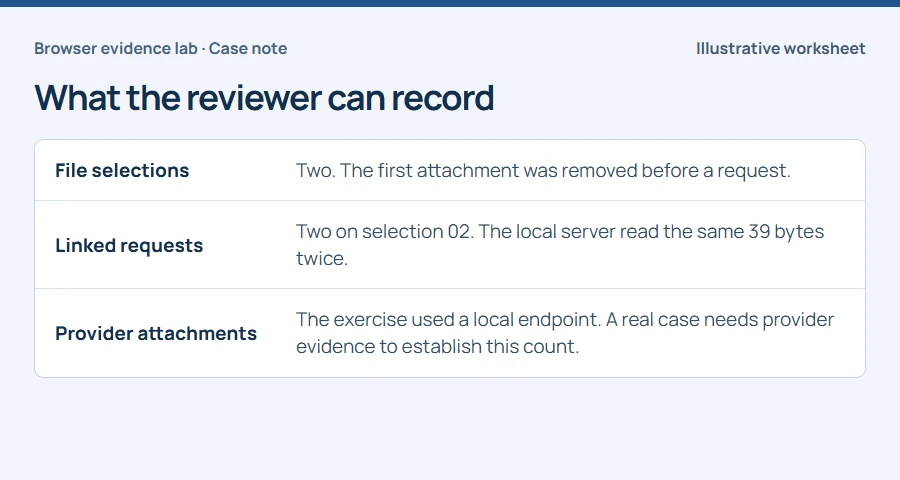
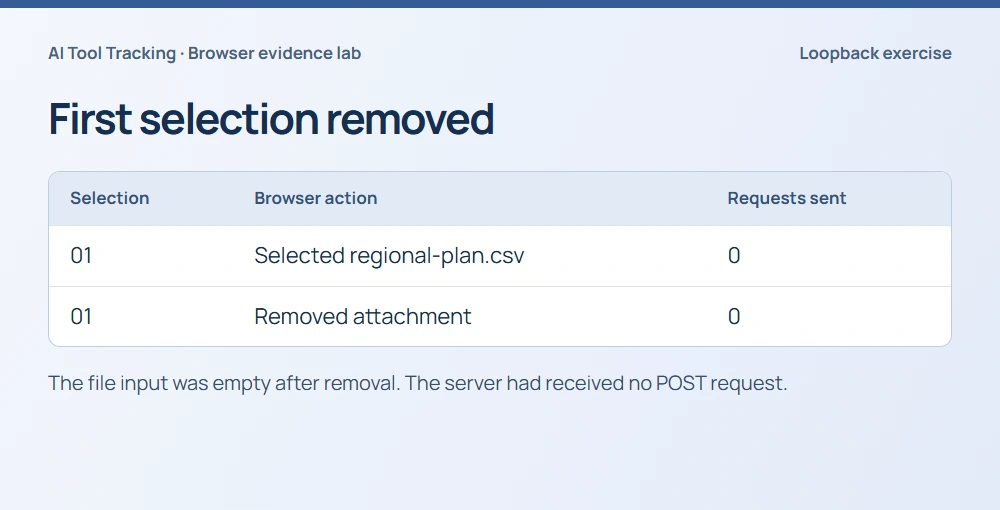
The first time through, we chose the CSV and clicked Remove attachment before sending. The file input became empty. At that moment the server log contained zero POST requests. Counting that selection as an upload would have added an extra transfer to the report.
We know the user removed the file because we controlled this exercise. During a real investigation, a selection without a linked request leaves several possibilities open, including an unobserved request or an incomplete reporting window. Record which sources covered the interval.
Keep the second selection separate#
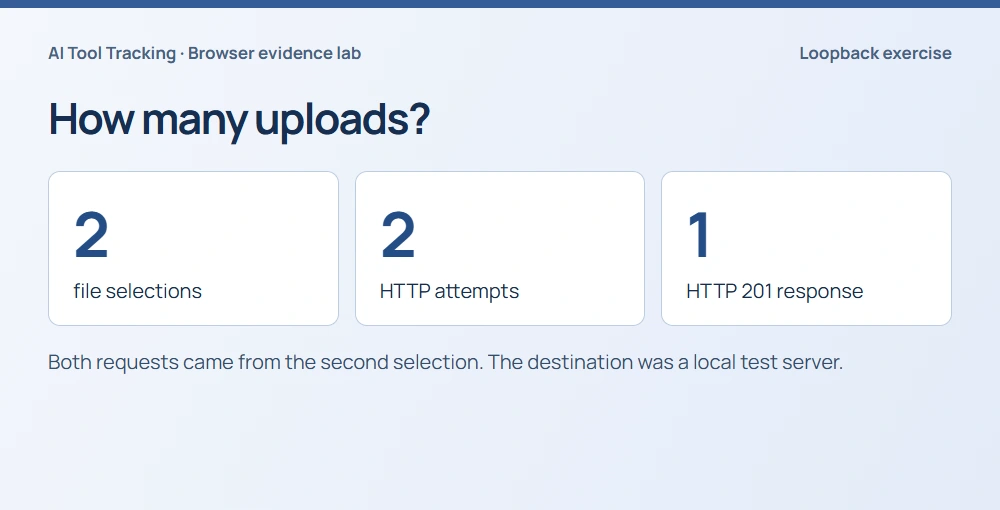
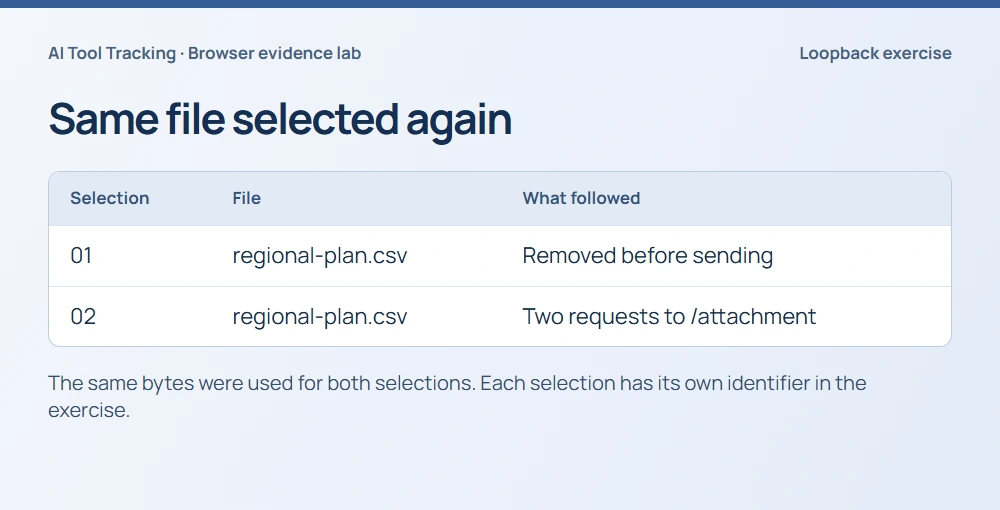
We chose the same CSV again. The filename, file size and bytes all matched the first selection. The browser still recorded a second action. We kept both selection records and attached the subsequent requests to selection 02. Grouping everything by filename would have erased the distinction that Finance needed.
In a workspace investigation, open the file gesture and follow its related requests. Keep a nearby request unlinked when the available record cannot connect it to that gesture. A busy AI tab can make several requests around the time someone selects a file.
Read each response in order#
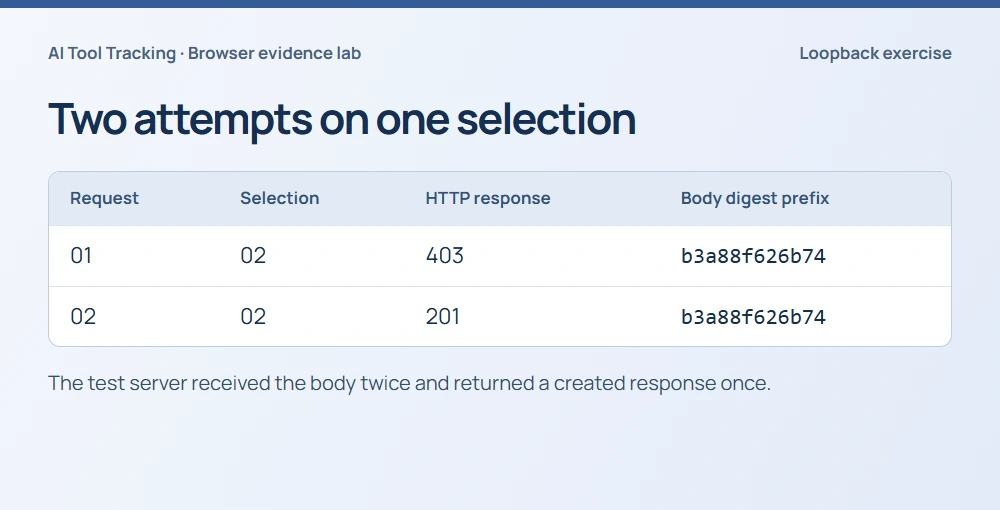
Our first send returned HTTP 403. We clicked Send again with the attachment still selected and received HTTP 201. The server had received the 39-byte body twice. A reviewer counting only the latest HTTP status would lose the denied attempt. A reviewer counting both requests as created attachments would overstate the result.
A 201 response reports that the request created a resource. To identify that resource as a particular attachment in an AI conversation, look for the provider’s attachment ID or a corresponding application record. Our local endpoint returned a test status and never contacted an AI service.
Try the filename search in the demo#
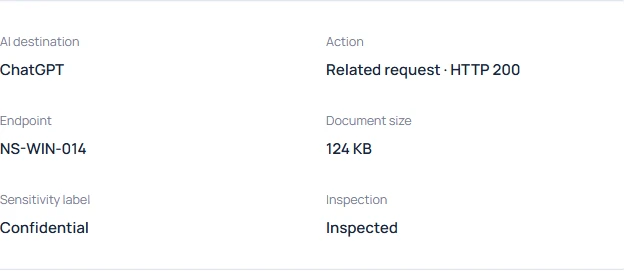
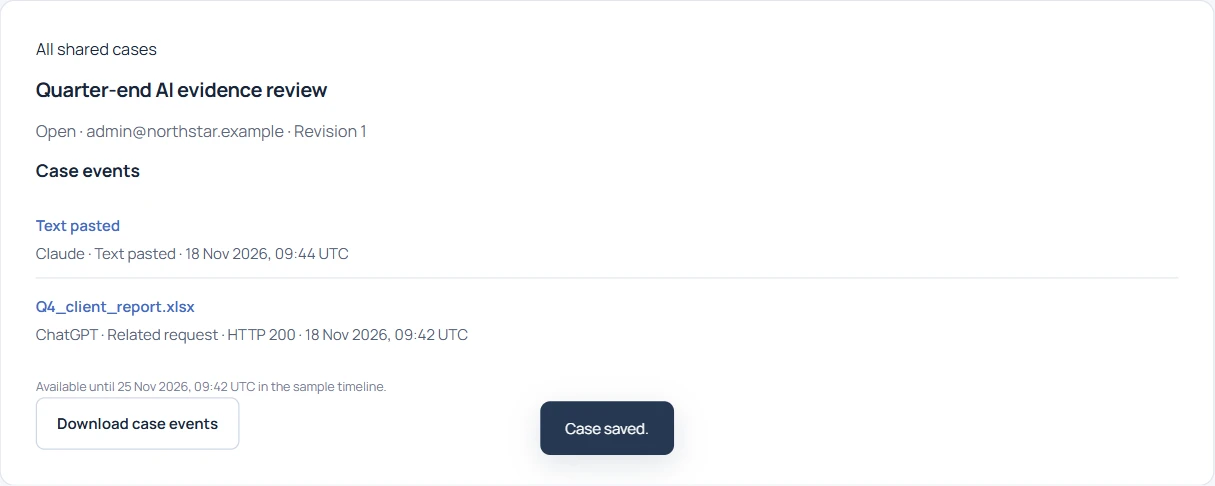
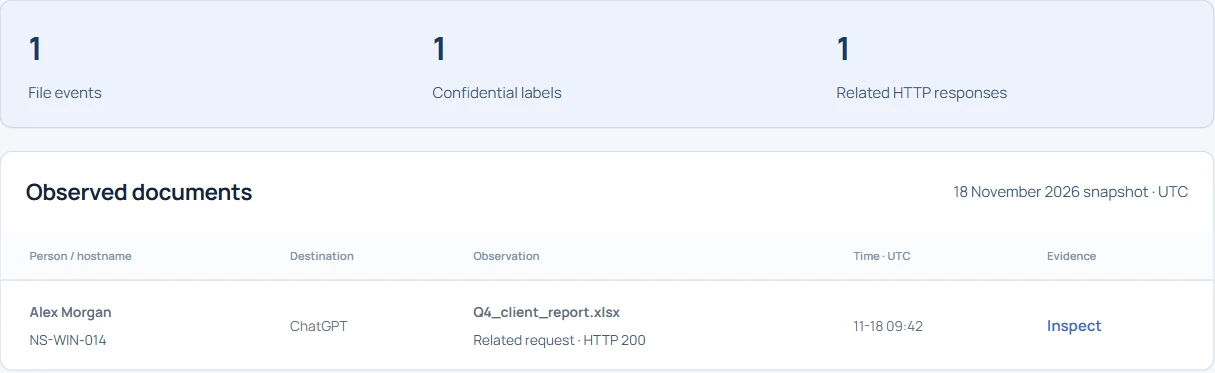
Open Documents in the Northstar demo and search for Q4_client. Follow the matching file observation to its detail. Compare its observed action with the related HTTP result and check which device reported it. This is also where to look when the person asking the question knows the filename but has no receipt ID.
If two employees used the same filename, start a separate sequence for each device and user context. A result from another device cannot fill a gap in the first device’s timeline.
Give the ticket three counts#
Our ticket would read “Two file selections. The first attachment was removed. Two POST requests followed the second selection. The local server received identical bodies and returned 403, then 201.” The answer to the narrower question about AI uploads is that this exercise created no AI-service requests.
For an employee case, report the number of distinct selections, linked attempts and confirmed provider attachments separately. If application-side confirmation is unavailable, mark that last count unknown. Give the SaaS workspace owner the destination, time range and request reference needed to resolve it.