Start with a filename, a device and a time window.
- Identify which ChatGPT surface supplied the observation.
- Check the file action, inspection state and related responses.
- Give the data owner a precise question and the supporting event reference.
In this article
Start with the question Finance actually asked#
Finance asks whether a customer contact list went into ChatGPT from a company laptop on Friday. The question has four parts. Which list? Which laptop? Which ChatGPT surface? What would settle whether the provider received it? Getting those details at the start saves a reviewer from reading a week of unrelated activity. Ask the file owner for the expected filename, approximate time and time zone. An approximate time is fine. Write down the uncertainty so the next reviewer searches the same interval.
In the public demo, open Users & AI usage and choose the fictional Northstar account. Start from the person when the report names a person. Start from the hostname when the ticket only identifies a laptop. Record how you found the device. A laptop assigned to Finance could have been in the hands of an IT technician that afternoon. The assignment tells you which sessions to check.
Identify what ran on Windows#
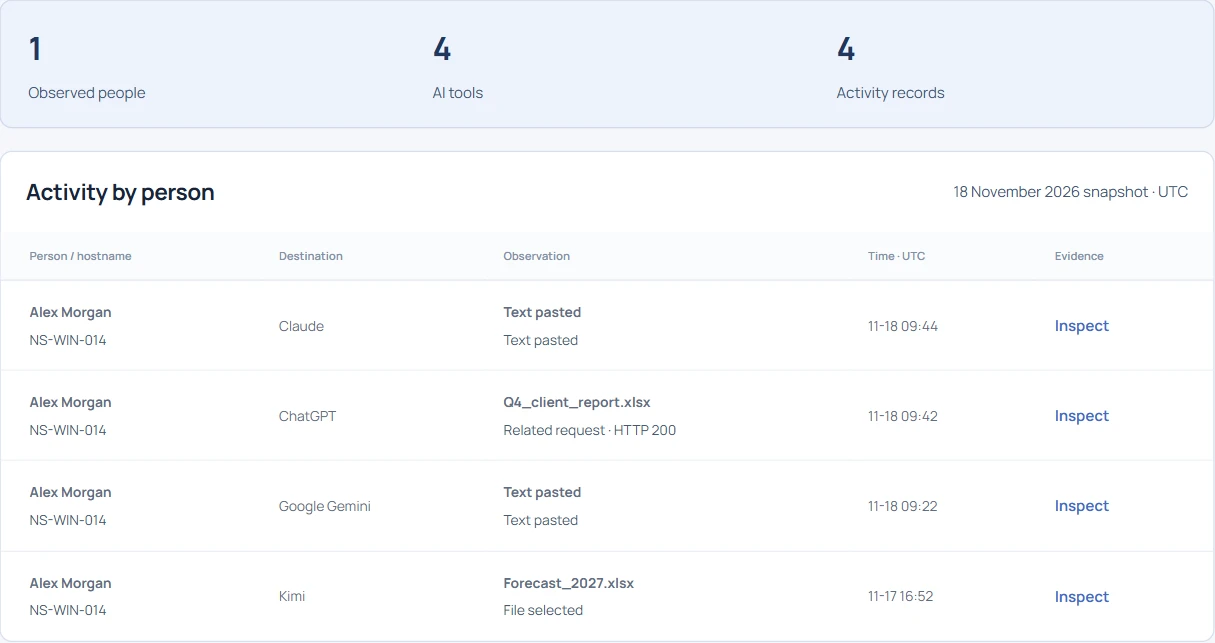
To reproduce the screenshots in a fresh demo, use the two ChatGPT sample links under Sources & further reading. Open the desktop example, select NS-WIN-014 and choose Simulate event. Repeat with the file example on the same device. The demo creates the records used in the searches below.
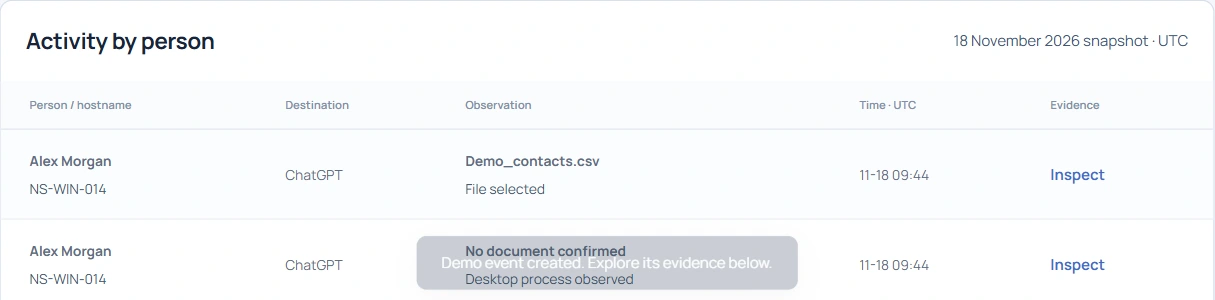
Open the ChatGPT desktop observation for NS-WIN-014. Read the action before reading the destination. The Windows agent sampled a process it recognizes as ChatGPT. That supports a precise answer for the inventory team. ChatGPT was running on the sampled laptop at that time. It could have been idle, starting with Windows, or open in the background during a browser session.
For the Finance question, keep this row as context. It supplies neither the contact list nor an attachment event. If this is the only record available, write down when the laptop last reported, whether browser observation was available, and when the file owner expects the action to have happened. That gives the endpoint team a specific coverage question. Counting the process as an upload would create a customer-data incident without evidence.
Find the specific file selection#
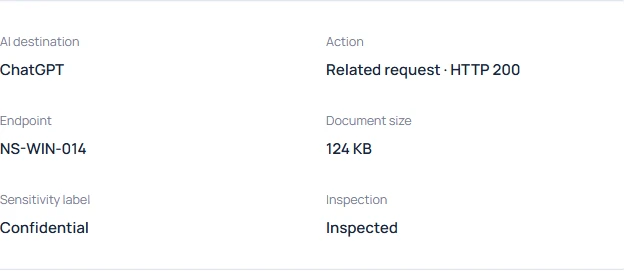
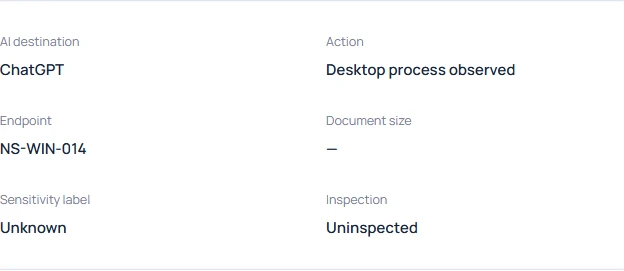
Switch to Document activity and search for Demo_contacts.csv in the demo. Open the result and compare its device, destination, and time with the ticket. A search hit tells you that the name appears in a recorded action. Two different files can have that name. Before escalating, compare the recorded size and ask the data owner whether the working file was renamed, exported, or copied to a different folder.
Keep the search narrow while it answers the question. If Finance says the file may have been renamed, widen the search to ChatGPT file activity on that laptop in the agreed interval. Look for a nearby record with a plausible size. Preserve the original interpretation if the wider search finds nothing. A search for one exact filename cannot exclude a renamed file, an unsupported app, or a device outside the pilot.
Read what the attachment inspection covered#
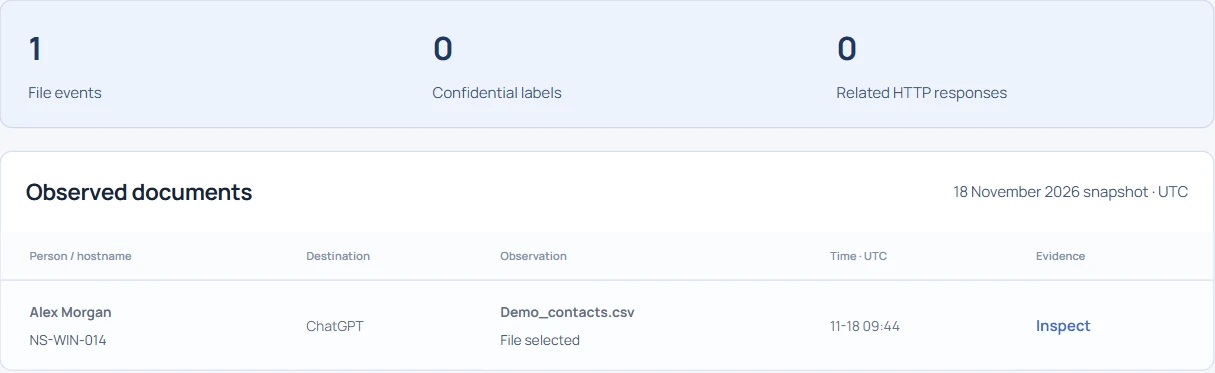
Read the inspection state beside the findings. A completed local check, a partial check, and a file the agent could not inspect call for different follow-up. If the file owner describes a contact list, the reported email category is relevant. A pattern match alone cannot tell you whether those addresses belonged to customers, suppliers or invented training contacts.
Use a harmless fixture to establish what your own rollout can see. Give it an invented address, a distinctive filename, and a documented expected result. Select it on a supported ChatGPT page, then remove it before submitting. Check which events the reviewer can retrieve. The result helps your team explain why the Finance record can exist even if the person changed their mind before sending a message.
Check how far the transfer got#
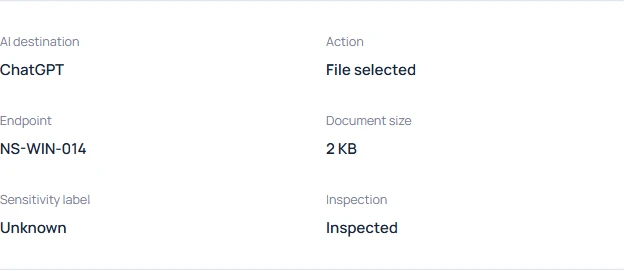
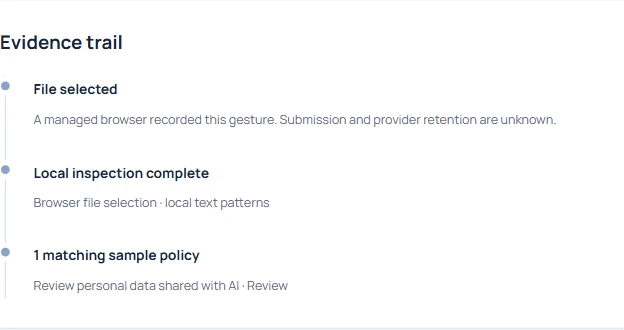
Read the evidence trail in order. A selection is a browser action. A related network response is a separate observation. In the sample CSV search there is no related response. The defensible finding is that the file was selected on a ChatGPT page and inspected locally. The available record leaves delivery unresolved.
When there is a response, keep the recorded status and correlation alongside the event. A rejection, a retry, and a successful request deserve distinct entries. Even a successful response can leave a narrower question open, such as whether the provider attached a particular file to a particular conversation. Ask the owner of the approved ChatGPT workspace whether an authorized provider-side record can answer that question. Keep the filename, time and receipt ID in the request so the owner can find the right activity.
Give the file owner a finding they can act on#
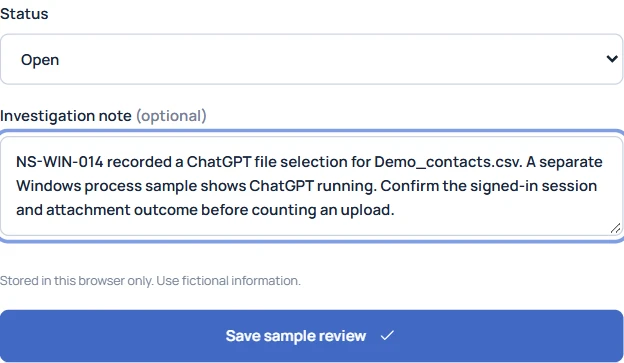
Write a case note that another analyst can validate. For example, “The browser on NS-WIN-014 reported selection of Demo_contacts.csv on ChatGPT. The separate desktop sample shows the app running on the same laptop. We have no correlated transfer response for this selection.” Add the time window, receipt identifiers, the inspection state and the person responsible for the next decision.
The file owner can now answer whether the sample name corresponds to real customer data. The workspace administrator can check provider records if that answer changes the response. If the file turns out to be an approved exercise, close the case with that evidence. For the next pilot review, count the action once, record the verified outcome separately, and retain only the fields needed to support the decision.