An observation is most useful when you can trace it to its source.
- Verify enrollment and browser coverage before interpreting a quiet account.
- Look up the individual receipt behind each destination.
- Resolve attribution on shared devices before naming an employee.
In this article
Count the devices that could have reported#
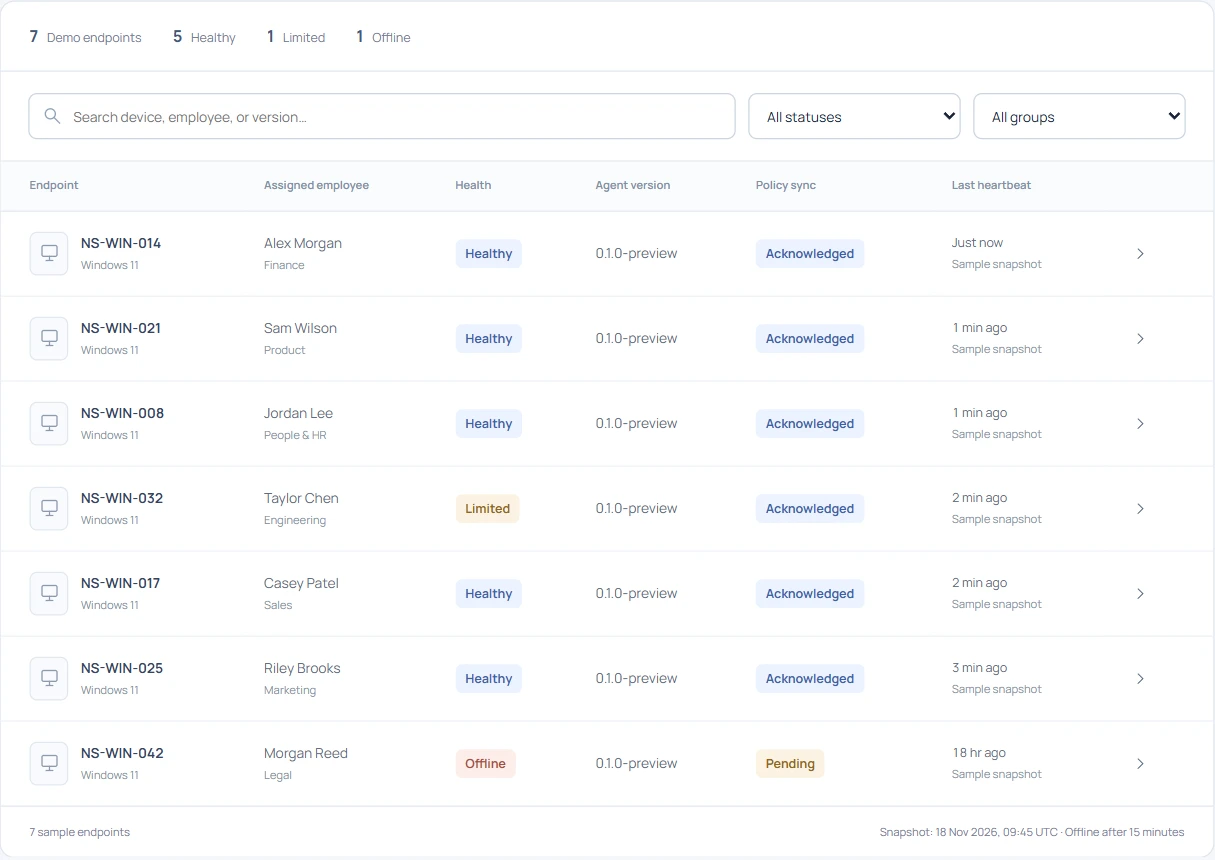
An IT director asks which employees used AI this week. The first number to establish is how many devices could have supplied an answer. Start with the pilot group, the machines assigned to that group at the beginning of the week, and the date each one first reported. An assignment made on Thursday cannot tell you what happened on Monday. Show laptops still waiting to enroll separately from devices that reported normally and had no matching observations.
Tell participants which applications and actions the pilot observes, who can review a finding, and how to correct an attribution error. A usage review works better when a person can explain that they share a workstation or were testing a new tool. Those details change how you interpret a report. They also help IT identify where a process inventory is enough and where a team genuinely needs file or paste evidence.
Before the first report, give the service desk a one-page scope statement. Specify the group the review covers, the Windows devices in that group, the browsers included in the pilot, and the date collection began. Include a contact for employees who want to see the policy or report a mistake. A scope statement gives the person presenting the results an answer when someone asks whether the figures include contractors, personal phones, virtual desktops or staff who joined halfway through the month.
Consider an illustrative rollout to 60 laptops. Ten were away from the office for the entire period and never enrolled. Another six enrolled on the final day. Four sent a Windows heartbeat but supplied no verified browser observations. If 12 of the remaining 40 laptops reported an AI browser action, the defensible observation is 12 reporting laptops out of 40 with the coverage defined for the exercise. It would take additional work to turn that into a count of people. Publish the other 20 devices and the reason for each exclusion alongside that figure. IT can then decide which gaps merit attention.
Validate one device in each deployment group with a harmless, distinctive test. Create a short text file containing an invented project name and an address under example.com. Note the test device, its Windows account and the local time. Use an approved test destination and perform the action the pilot is meant to see. A member of the review team should be able to find the same filename, destination and account in the dashboard. Repeat on a second browser if the report is going to combine both. A pilot that has only checked desktop process reporting has yet to demonstrate browser file visibility.
Include a deliberately quiet control. Have an enrolled test laptop check in during the same period without performing the test action. It should appear in the device review and contribute no matching file event. This separates a working device with no matching use from a laptop that never sent data. Keep the test cases labeled and exclude them from the employee activity figures. A burst of ten tests by IT can otherwise make a small department look like the company’s most enthusiastic AI adopter.
Save the scope with the report. When a later deployment adds another browser or another division, record the exact date. If observations double that week, a reviewer can check how much of the increase came from improved coverage before concluding that employee behavior changed.

Find activity by account, then verify the device#
Search Users & AI usage for the account in the ticket. Inspect the device and time on each result. If a name matches more than one person, narrow the result using the organization’s directory information. If a person changed laptops last week, check both hostnames in the relevant period. Keep the account recorded at observation time separate from the person currently assigned the device.
A shared reception computer illustrates the risk. A single Windows account can serve several shifts. You can report that an action occurred on the reception device under that account. A finding attributed to a named employee needs more evidence, such as a verified session or a handover record covering the event time. Mark the user as unresolved when that information is unavailable. That preserves a useful device finding without assigning responsibility to the wrong person.
Treat account names and computer names as search keys. Start with whichever identifier the request actually supplies. If the service desk gives you a hostname, open that device and work outward to account observations. If a manager gives you a display name, check the organization’s directory record and use the appropriate work account. Two people can have similar names, and a person’s email address can change after an organizational move. Preserve the identifier attached to the original observation while you resolve the person’s current contact details.
A device replacement is a good test of the method. Suppose a support analyst returned LAPTOP-17 on Wednesday and received LAPTOP-42 on Thursday. A search by current hostname will miss the beginning of the week. Search the authorized reporting interval against both endpoints. For each result, compare the observed account, the device’s enrollment record and the event time with the handover. If the same hostname later belongs to a rebuilt machine, the enrollment identifier helps separate the old installation from the new one.
Pay attention to the clock in the ticket. “After the afternoon call” means something different to colleagues in Sofia, London and Seattle. Ask the reporter for a date and a local time zone, then write down the UTC interval used for the search. Keep the endpoint’s observation time and the collector’s receipt time available. A laptop that reconnects after travel can deliver older observations together. A group of receipts arriving at nine on Monday morning does not establish that several employees all pasted content at nine.
Keep three kinds of identity distinct in your notes. The organization directory identifies a work account. The endpoint reports an account or device associated with an action. The AI provider may have a different sign-in session inside the browser. A corporate Windows login can coexist with a personal or shared browser session. If the question turns on whether the approved business workspace was used, ask its administrator to verify that part using records they are authorized to review.
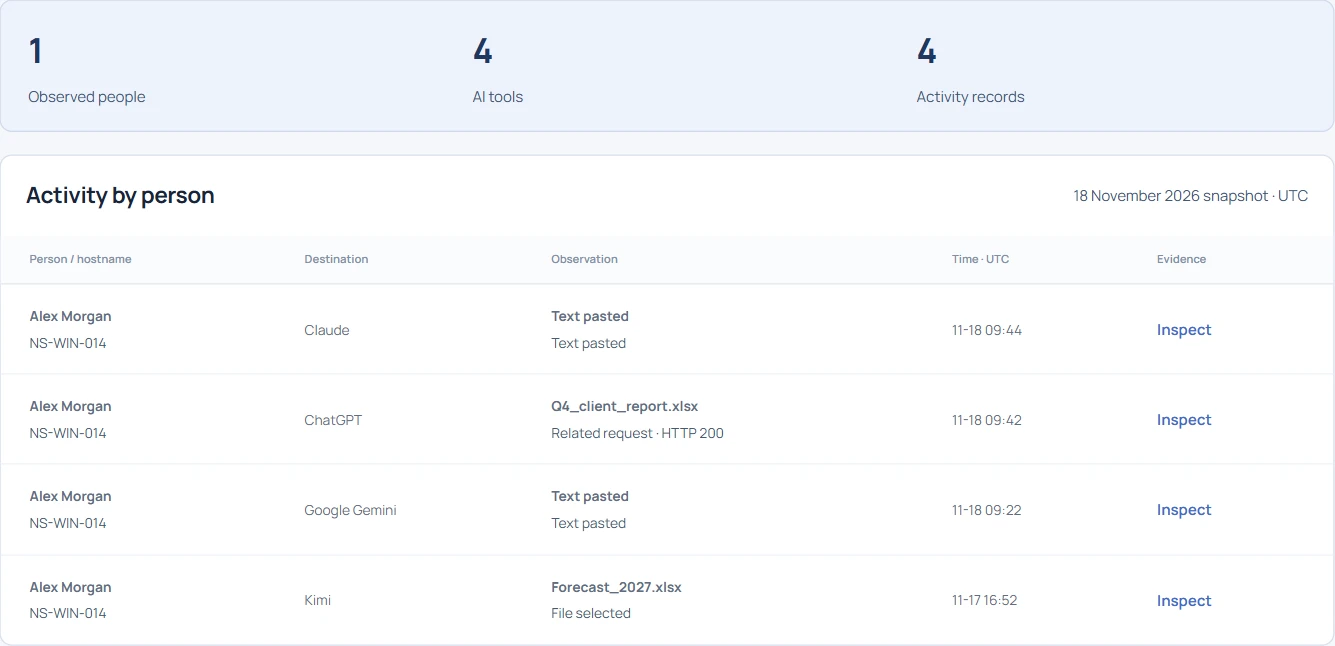
Give the ticket a simple attribution statement. For example, “The endpoint and Windows account matched the ticket during the stated interval. The destination was Claude. The provider account was unresolved.” A shift supervisor can act on the first two facts while the workspace owner checks the third. If a correction comes back, append the source and the corrected association. Preserve the original event reference so another reviewer can retrace the decision.
Separate desktop software from browser use#
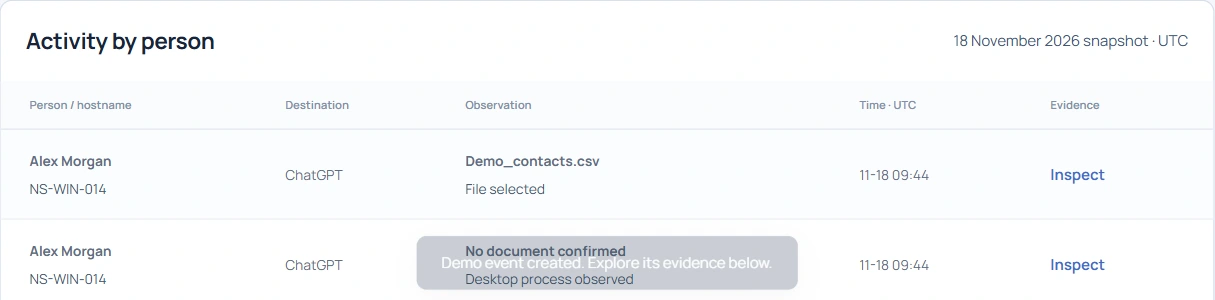
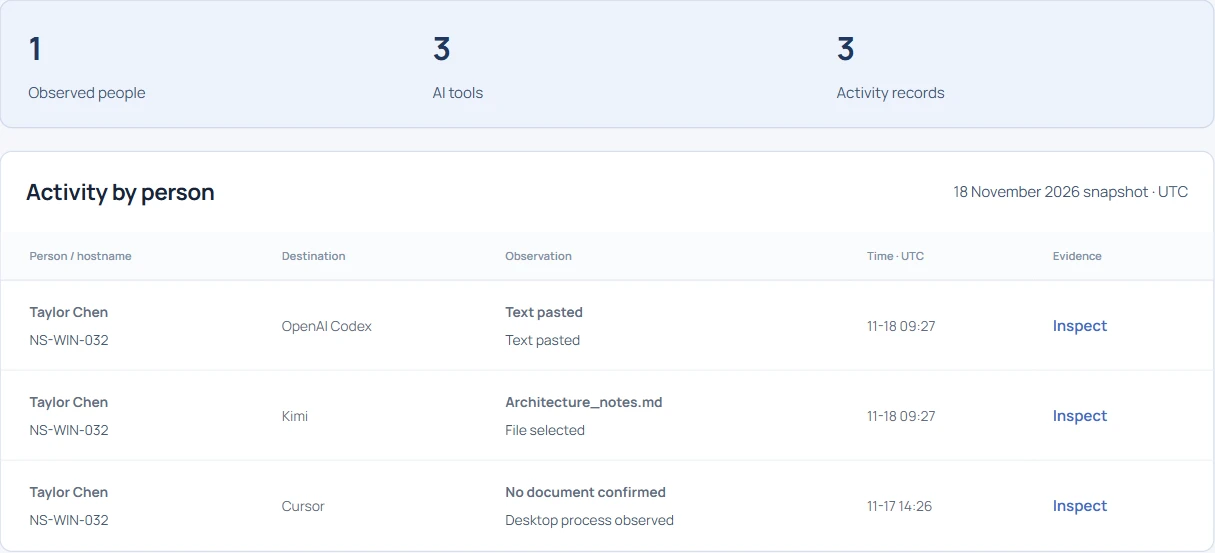
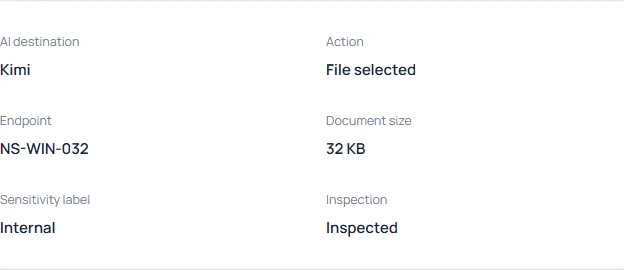
The demo engineering laptop is a useful example because its timeline contains three kinds of activity. A Cursor process sample identifies a running editor. A Codex paste observation identifies a browser gesture. A Kimi file selection identifies a chosen file and destination. A vendor inventory can list all three. An investigation about files should begin with the Kimi receipt.
This distinction also helps procurement. An installed AI-enabled editor gives IT a reason to ask the engineering team which features it uses and whether a company license covers them. It does not establish that the developer submitted source code to a model. Record the product name, the observation type and the surface together. Keep local model runtimes distinct from external AI services when reporting the result to management.
Build a short dictionary of the events you intend to count. For a browser file selection, the unit is one observed selection on a supported destination. For a paste, the unit is one observed paste gesture. For a desktop process sample, the unit is the sampling observation from the Windows agent. Put the dictionary beside any export that combines these sources. Someone scanning a dashboard for the first time can easily read one busy device’s repeated samples as dozens of separate employee decisions.
Follow a fictional engineer through an ordinary morning. They start an editor with AI features, leave it open while attending a meeting, and return to paste a question into an approved web assistant. Later they select a design document on a different AI site, notice it is the wrong revision, and cancel. An inventory review has evidence of several tools. A paste review has one relevant gesture. A document review has a file selection to check against any related transfer observation. None of those counts, by itself, gives procurement the number of AI-generated responses the engineer used.
Developer tools deserve particular care. A person can write, build and debug entirely locally in an editor that also offers a model integration. A local model runtime can answer on the device. A team can run a scheduled job against a provider API while nobody is interacting with an AI website. When the question is where code went, identify the client or integration, its configured destination and the evidence available for that specific operation. If your endpoint sample only identifies the program, record the program and ask its owner which integration was enabled. Avoid inferring a cloud transfer from the name of an executable.
A service inventory also needs a decision about grouping. One vendor may supply a consumer chat site, a company workspace, a coding assistant and a developer API. Collapsing them into a vendor total is useful for contract discussions. Keep the underlying destination and observation type available for security reviews. An approval for a team’s enterprise chat workspace may leave a public API integration or a separately installed desktop client outside the approved use.
One practical check is to give the same five sample events to two reviewers. Ask each for the number of observed tools, accounts, paste gestures and confirmed transfers. Compare their answers before circulating a report. Differences often reveal an ambiguous event label, a double-counted retry or an assumption about what a process sample means. Record the agreed interpretation once and use it for the rest of the pilot.
Use a finding to narrow the question#
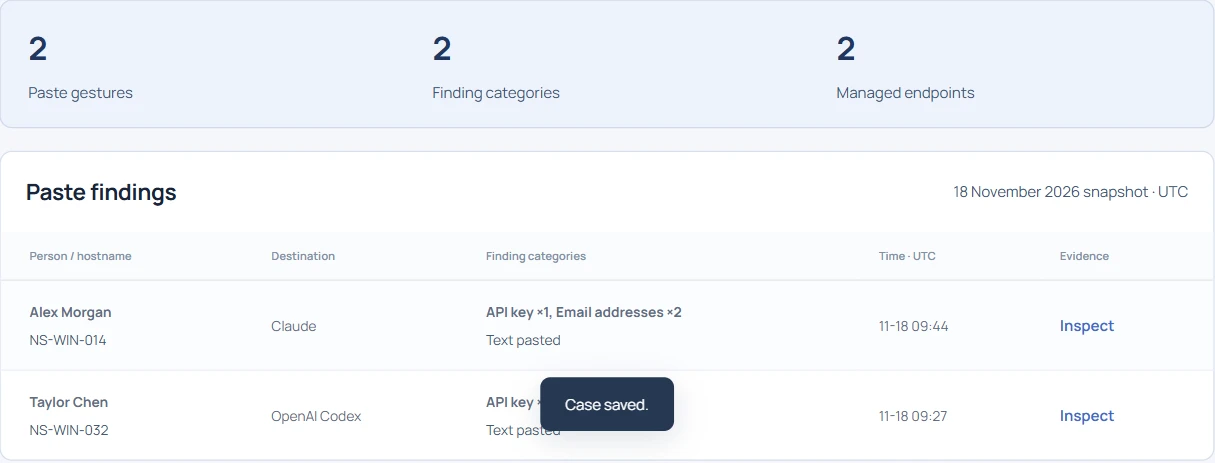
A finding category is often enough to choose the next owner. Search Sensitive pastes for the API-key category, select the time window, and inspect the reported destination and device. Keep the event identifier in the ticket. Do not ask an employee to paste a suspected key into chat or email to prove it was real. The credential owner can check approved inventory, determine whether a live credential could match, and decide on rotation through the organization’s usual process.
One paste can contain several matches. The number beside a category describes the detector output for that inspection. It cannot establish how many employees, keys or incidents are involved. If a demo fixture repeats the same example twice, a pattern detector may correctly return two occurrences. Group by receipt before counting actions. A separate count of patterns helps analysts understand why one receipt might warrant attention sooner than another.
Use the smallest search that can answer the initial question. If a security engineer asks whether a deployment credential might have been pasted into an assistant on Tuesday, start with the finding category and time window. Add the suspected destination or account when known. Open one matching receipt and write down its identifier. Searching the organization for the literal credential would create a second sensitive value to handle and still leave the question of validity unresolved. A category-level search can send the right case to the right owner without copying the secret into the ticket.
For personal information, preserve context. An address ending in example.com inside a documented training exercise and a list of active customer addresses can trigger the same email-address pattern. The pattern supplies a reason to look. The data owner can confirm the source and sensitivity using a filename, project name or approved change record. Avoid pasting a list of addresses into a weekly report just to demonstrate that the detector ran. A category, occurrence count, time and event reference are ordinarily enough for the first review.
Distinguish the action from its outcome. An employee may paste something into a prompt, notice the mistake and delete it. The paste remains relevant to coaching or a preventive control. A conclusion about what a provider received calls for a separate source of evidence. For a file, check whether a supported related request was observed and what response it received. For a paste with no submission evidence, say that submission is unknown. If a provider-side record is needed, specify which workspace owner can look for it and which narrow time interval matters.
Suppose an analyst finds three events in a ten-minute window. Two are paste gestures on the same endpoint, and one is a file selection on another. The first paste has two email matches and a key-like string. The second has one key-like string. Record two pastes, one file action and the individual classification counts. Ask the credential owner whether the two paste events could refer to the same development fixture. Adding four matches and announcing four incidents would lose the information the owner needs to decide what happened.
When a search returns nothing, record its limits. Check whether the date range covered the employee’s local working day, whether the endpoint reported during that period, and whether the classification applies to the file format or surface involved. An encrypted attachment can produce a useful filename receipt while its contents remain unreadable. An empty search for a PII category leaves that file’s sensitivity unresolved. The next step may be a short conversation with its owner rather than a wider employee search.
Compare the observation with the approved use#
Approval should be specific enough to answer the question a reviewer will ask. A company might allow an engineering assistant for public examples, restrict customer support records to an enterprise workspace, and leave other tools pending review. Look up the policy and its effective date for the team involved. Save the policy version or decision reference alongside the observed action.
If Kimi is absent from the approved list, procurement can check whether a pilot exception existed at the time. If ChatGPT is approved for one business workspace, a hostname alone may be insufficient to identify which account the employee used. Give that question to the workspace owner. The result can be an inventory update, a clearer acceptable-use rule, or an investigation. Selecting the proportionate response keeps ordinary adoption work separate from an actual data incident.
Use the policy that applied at the event time. A team may have received a temporary exception to test an assistant before it went on the general approved list. Conversely, a tool approved last month may have lost approval when a pilot contract ended. Look up the approval date, eligible group, permitted data and any workspace restriction. A screenshot of today’s policy is helpful for remediation but cannot establish what a person was allowed to do three weeks ago.
Take a proposal team that can use Claude for public tender announcements. A browser action involving an already published notice fits the stated purpose if the other conditions are satisfied. Selecting an unpublished pricing schedule raises a different question even if both actions happened in the same corporate workspace. Ask the proposal owner to identify the revision and its publication status. A file named Final.pdf offers little help until the owner connects it to a specific document. Save that confirmation in the approved case system and keep the underlying file in its authorized location.
For tool blocking, separate the policy decision from endpoint enforcement. An administrator can select a forbidden destination and save the rule before a laptop receives it. Check the assigned endpoint’s reported policy state and the time it checked in. Match the rule to the actual surface and action. A rule about document uploads and a rule restricting access to a site address different behaviors. A user seeing a page load can be consistent with an upload-only rule. A later observed file selection still requires a check of the transfer result and the device’s enforcement state.
If the event happened before the laptop received a new rule, give endpoint operations the delivery question. If delivery was confirmed before the event, reproduce the intended control using a harmless sample on an authorized test endpoint with the same browser and policy scope. Record the application, action, expected outcome and observed result. This gives the enforcement owner a precise bug report. It also keeps the original employee case from becoming an uncontrolled series of tests using the real customer document.
Close the policy comparison with an explicit outcome. An approved use may simply confirm that a team adopted its licensed workspace. A missing exception record belongs with procurement or the policy owner. A possible exposure involving a real secret belongs with the credential owner and security team. A discrepancy in delivered controls belongs with endpoint operations. Those outcomes can coexist in the same weekly report without treating every user of a newly discovered tool as a policy violator.
Close the loop with the person who owns the decision#
Give each unresolved observation a next step with an owner. Endpoint support can explain a missing browser adapter. The data owner can classify an unfamiliar spreadsheet. Procurement can reconcile a new destination against contracts. Security can determine whether a real credential or a confidential file needs a response. Those questions are easier to answer than a generic request to investigate an employee.
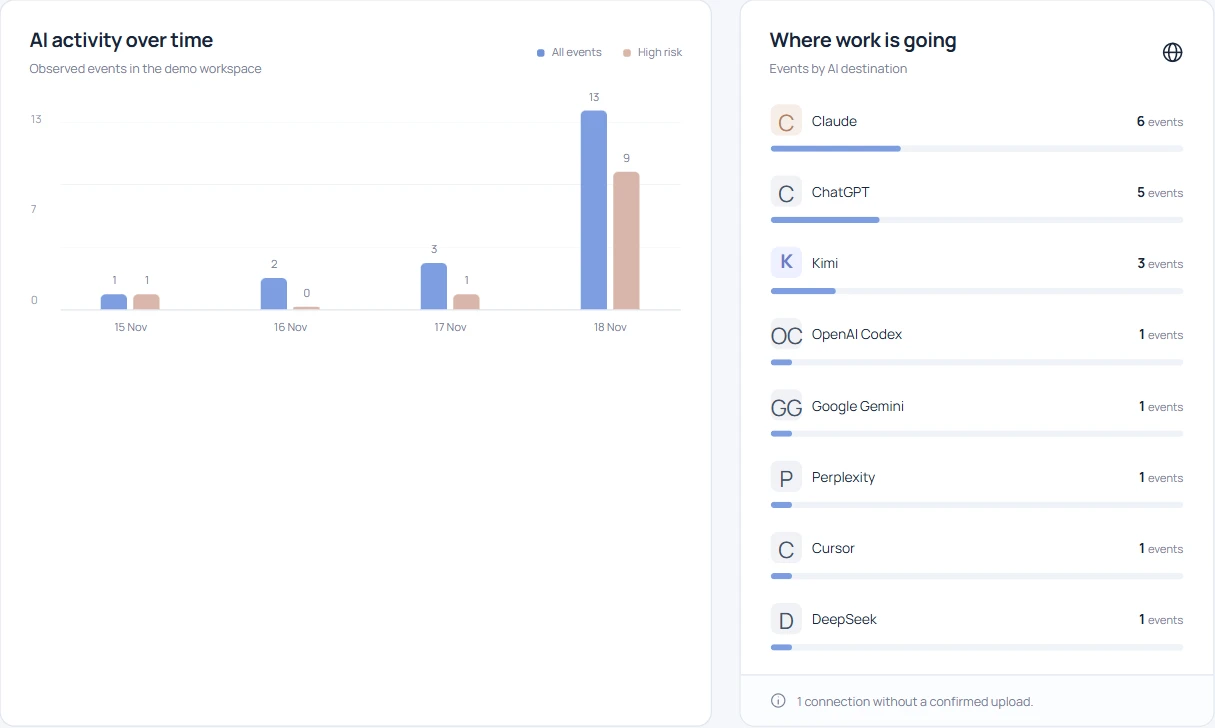
For the weekly summary, publish the size of the reporting population, the number of observed accounts, the tools that appeared and the number of cases still awaiting attribution. Include one worked example showing the difference between an application running and a file action. Keep individual names in the authorized review workflow. The summary should give management enough information to improve coverage, licenses and employee guidance without turning event counts into a ranking of people.
Write the handoff so the next person can repeat the search without access to your browser history. Include the workspace, interval and time zone, search fields, account or device reference, event identifiers and the interpretation you reached. Name the question still open and who owns the answer. “Please confirm whether the contract was public by Wednesday at 14:00 UTC” is a better assignment than “Investigate AI.” It tells the reviewer which document state matters, why timing matters and what a sufficient answer would look like.
For a case involving a shared workstation, a usable outcome might read, “Reception-03 reported a paste with one email-address match on the approved AI page. The device used a shared account during shift change. The service owner confirmed the sample was part of staff training. Individual attribution remains unresolved.” That closes the classification question and preserves the identity limitation. It also gives the training coordinator a practical improvement for next time, such as recording the date and harmless sample used for the exercise.
A weekly management summary can be short. For an illustrative pilot, 30 laptops qualified for browser reporting throughout the week. Nine had a supported AI action, associated with eight distinguishable work accounts and one shared account. Two filename receipts needed data-owner review. One was an approved public sample, and one awaited identification of the revision. Give management those numbers, the scope, and the decision needed. Keep the identities and detailed receipts in the restricted workspace where an authorized reviewer can inspect them.
Make corrections visible in subsequent reports. If the data owner later identifies an apparent confidential attachment as a publicly released product brief, update the disposition and the reason. If two similar display names were conflated, correct the account mapping and any totals derived from it. Keep a reference to the earlier decision so the difference between reports is explainable. People are more likely to flag mistakes when the process has a named owner who can correct them.
Judge the pilot by the decisions it improved. Procurement might consolidate two overlapping subscriptions. A support team might receive a sanctioned workspace for an existing need. Security might route a genuine credential finding to its owner more quickly. Endpoint operations might repair a gap that left several laptops silent. For the next reporting period, choose one of those decisions and check whether it actually happened. That gives the organization a reason to maintain employee AI visibility beyond producing another activity chart.