Start with the person and check the device behind each event.
- Search the assigned account or hostname.
- Inspect the observed action and its time.
- Check device coverage before interpreting a quiet timeline.
In this article
What belongs in an employee AI usage report?#
Suppose Finance asks which AI tools saw activity on a particular laptop yesterday. A count of visits to AI domains leaves two questions open. Who was using the device, and what happened on the page? A useful report puts the observed Windows account, hostname, AI destination, action and timestamp on the same row.
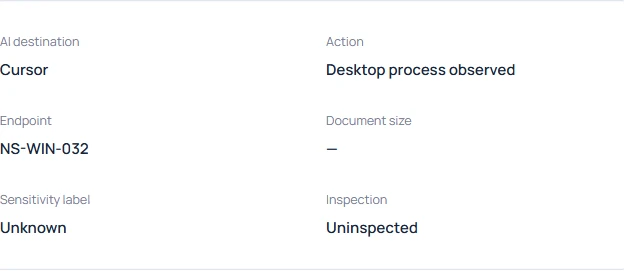
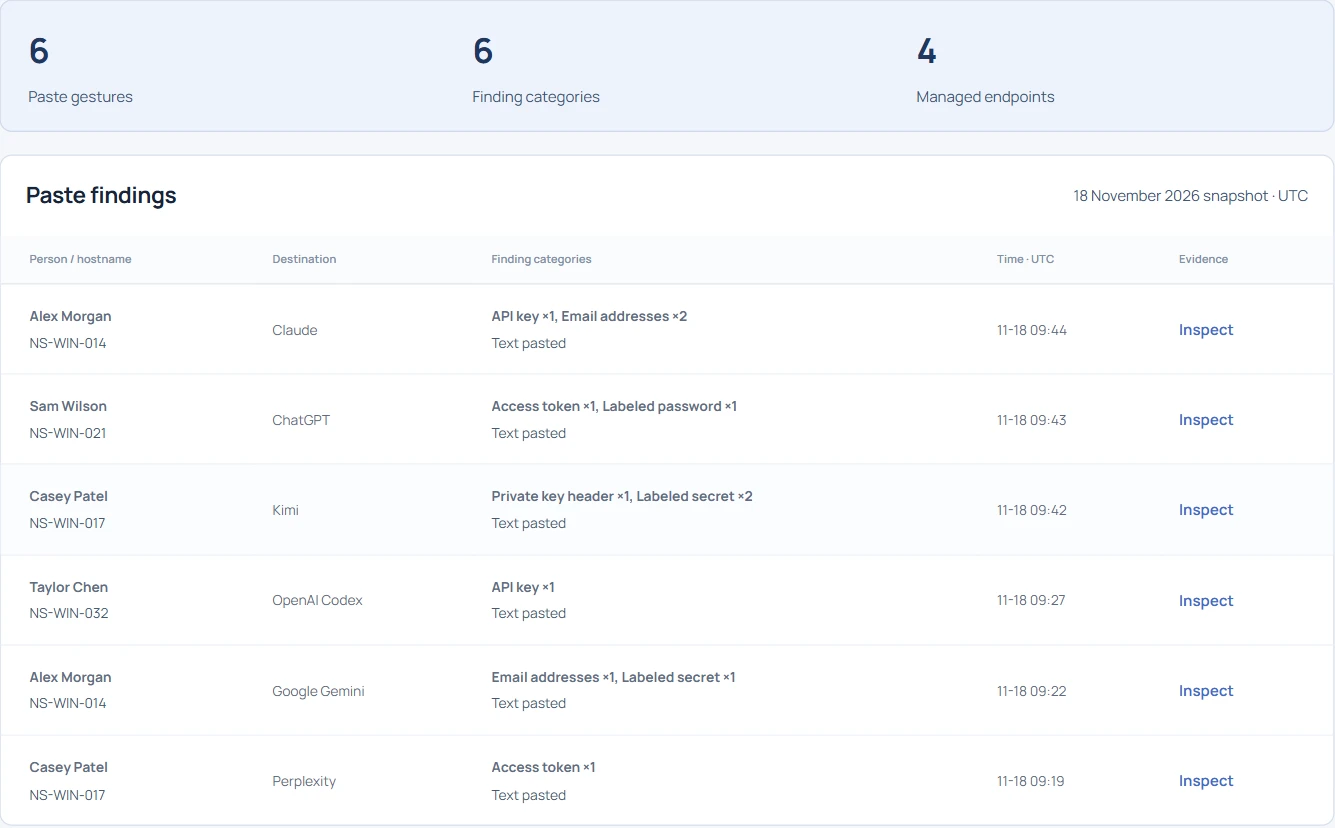
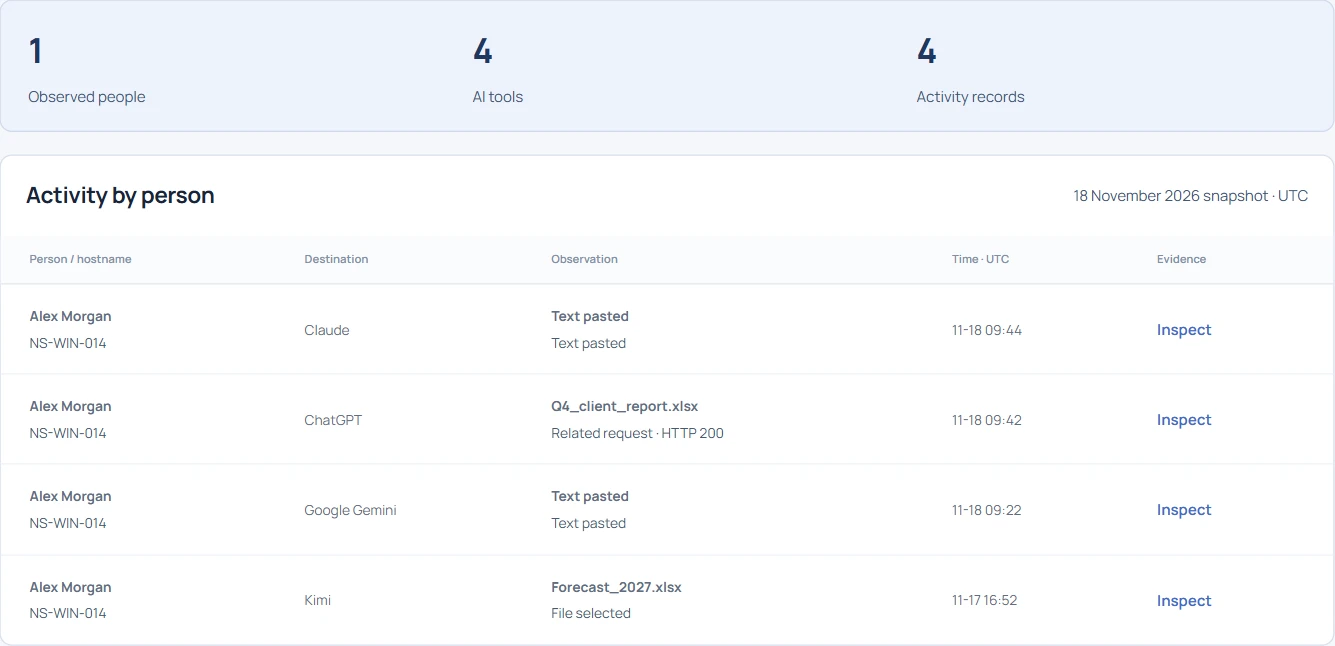
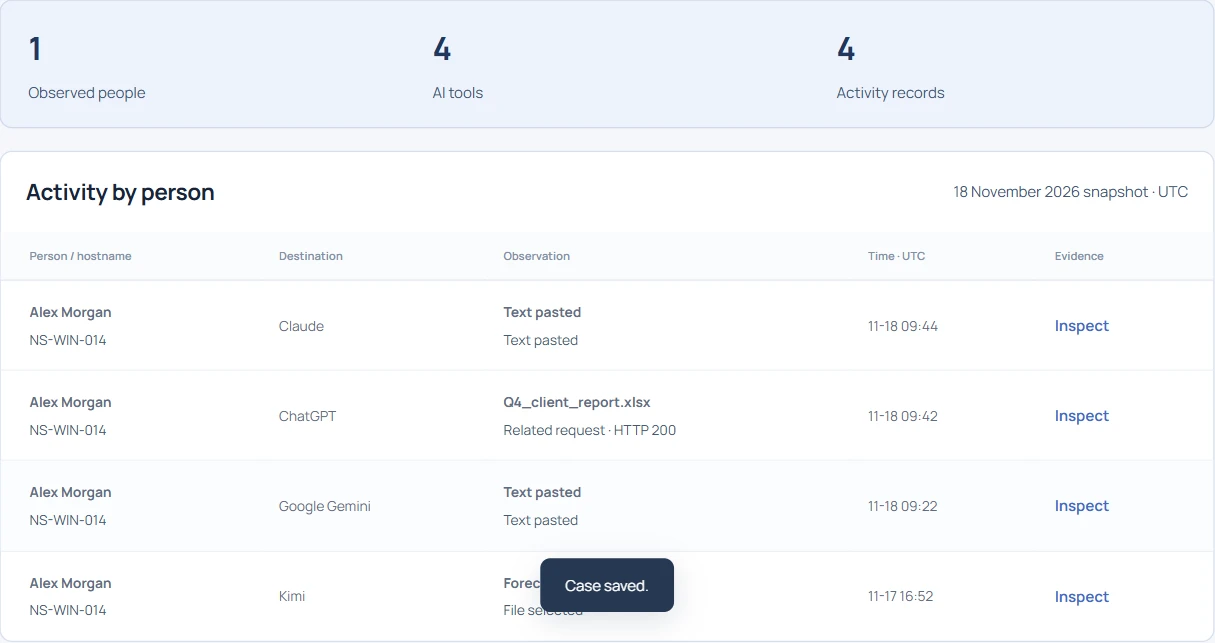
In the public demo, open Individual AI usage and search for Alex Morgan. The sample report narrows to NS-WIN-014. Alex’s timeline includes pastes on Claude and Google Gemini, a related HTTP response on ChatGPT and a file selection on Kimi. Search for OpenAI Codex to find a different employee’s paste. Search for Cursor to see what a Windows editor process contributes to the same report.
Follow the account to a specific observation#
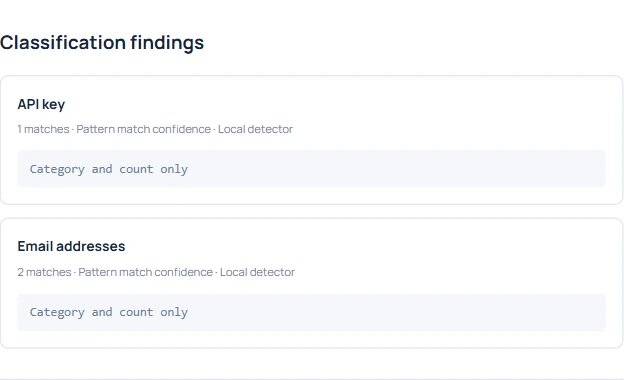
Open Inspect beside the Claude row. The evidence identifies an API-key pattern and two email-address matches. It gives the investigator a timestamp and the managed endpoint to follow up on. The report omits the pasted value. Return to the list and search the hostname to check which observations have the same source.
A hostname identifies a machine. When a shared workstation, service account or remote desktop is involved, check the session assignment for the event time before attributing an action to a person. The same caution applies if a device has changed hands.
Count events separately from matches#
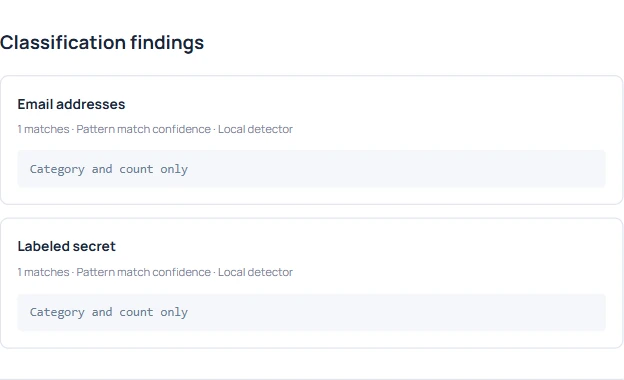
Open Alex’s Google Gemini receipt. The detector found one email-address pattern and one labeled secret. An activity report should count one paste on Gemini. A detector-quality report might count two matches. State which number you are using before comparing accounts or destinations.
Read the action on the file receipt#
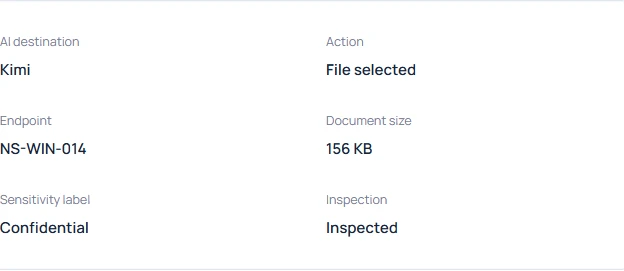
The Forecast_2027.xlsx row records a selection on Kimi. The receipt gives Finance a hostname, a 156 KB size and a confidential label. It leaves open whether the user sent the file. Record that uncertainty alongside the filename if you refer the event to the data owner.
Check what the HTTP result adds#
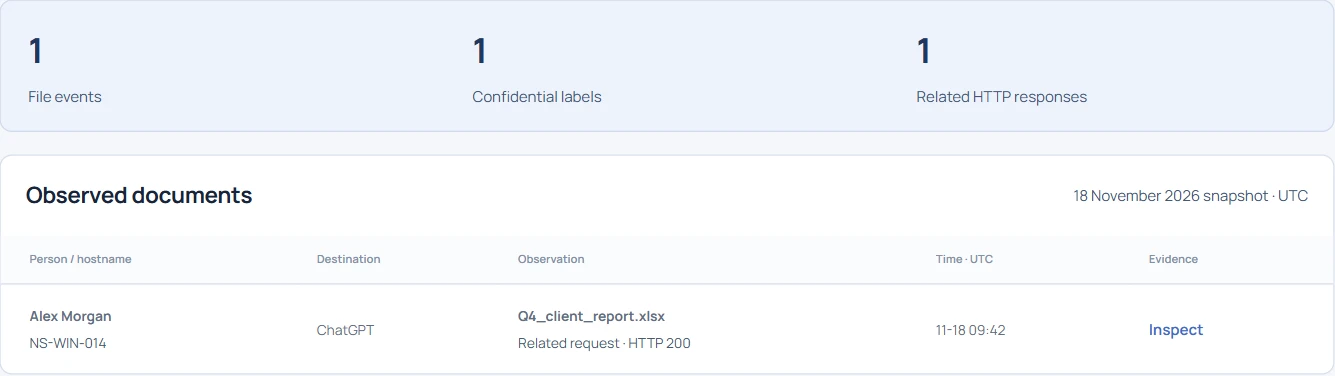
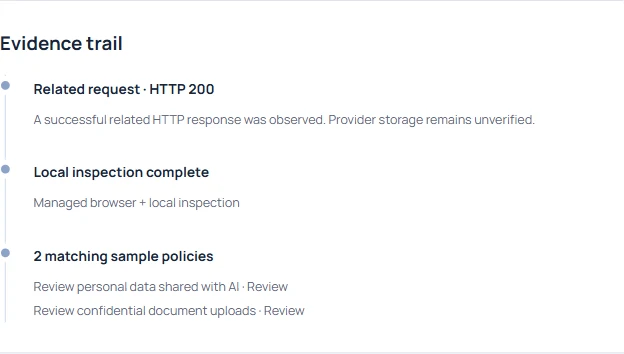
On the same device, Q4_client_report.xlsx has a related HTTP 200 response on ChatGPT. The response belongs to this receipt. It adds nothing to the Kimi observation, even though both rows appear in Alex’s timeline. Keep destination, time and receipt ID together when preparing a report.
What can an endpoint report miss?#
A managed browser can observe supported page gestures. A Windows process match for Cursor, Windsurf, Codex or Ollama tells you which client was running. It does not identify a document, a chat or even an active user session in that app. Check the agent heartbeat and browser connection when a known test gesture is missing.
For a pilot, repeat the same harmless file-selection and paste exercise on each AI tool in scope. Export the resulting event metadata and compare it with the actions you performed. This gives security reviewers a practical basis for judging coverage. Event counts alone cannot measure employee productivity.